Google Pay is available in the Philippines with support from a growing list of local banks and payment providers, giving Android users another way to pay without pulling out a physical card.
The cards themselves are added to Google Wallet, the app that stores your payment methods. Google Pay is the service used when you tap your phone or watch at a terminal, or choose Google Pay during checkout in a supported app or website.
As of September 27, 2026, Google lists 14 Philippine banks and payment providers with supported cards. Card eligibility still depends on the issuer, so not every card from a participating bank will necessarily work.
Which Philippine banks and cards support Google Pay?
Google’s current Philippine support list covers the following:
| Bank or provider | Cards listed by Google |
|---|---|
| BPI | Mastercard debit and credit cards; Visa credit cards |
| Chinabank | Mastercard credit cards; Visa credit and debit cards |
| EastWest | Mastercard credit cards; Visa credit and debit cards |
| GCash | Mastercard debit cards |
| GoTyme Bank | Visa credit and debit cards |
| MariBank | Mastercard debit cards |
| Maya Bank | Visa credit cards |
| Maya Philippines | Visa prepaid cards |
| PalawanPay | Prepaid cards |
| Philippine National Bank | Mastercard credit and debit cards |
| RCBC | Mastercard and Visa credit cards |
| UnionBank | Visa cards |
| Wise Pilipinas | Visa prepaid cards |
| Zed | Mastercard credit cards |
Google says the issuer ultimately decides which of its cards can be added to Google Wallet. A bank appearing on the list therefore does not guarantee that every card it issues is supported.
This is especially worth checking if you have an older card, a supplementary card, or a card product that does not clearly match the categories above.
Google Wallet and Google Pay are not quite the same thing
The naming can be confusing because Google Wallet and Google Pay work together.
Google Wallet is the Android app where you keep supported payment cards, tickets, passes, loyalty cards, and other digital items.
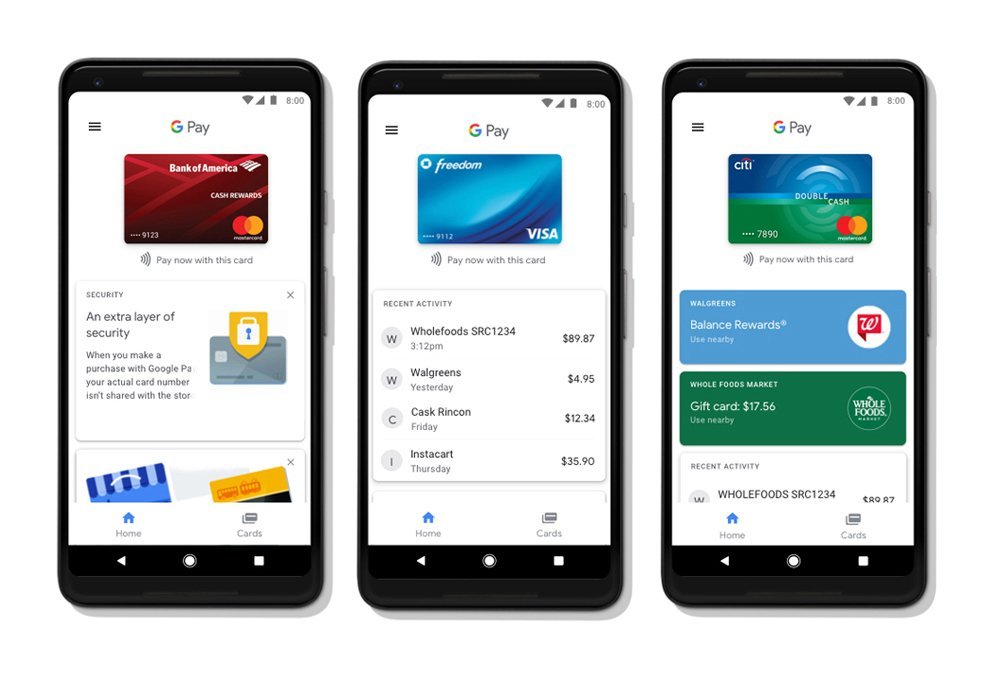
Google Pay is the payment service. It is what handles the transaction when you tap to pay or choose Google Pay at an online checkout.
In practice, if you want to set up Google Pay on your Android phone, the app you will normally open is Google Wallet.
What phone do you need?
Google Wallet requires Android 9 or later. Your phone should also have an up-to-date version of Google Play Services and the Google Wallet app.
For contactless payments in stores, the phone also needs NFC. This is the short-range wireless technology that lets your phone communicate with a contactless payment terminal.
You will also need a supported screen lock and a phone that meets Google’s security requirements. Rooted devices and some phones with modified software or unlocked bootloaders may not be allowed to make contactless payments.
You do not need a Pixel phone. Any compatible Android device can work as long as it meets Google’s requirements and has NFC for tap-to-pay transactions.
How to add a card to Google Wallet
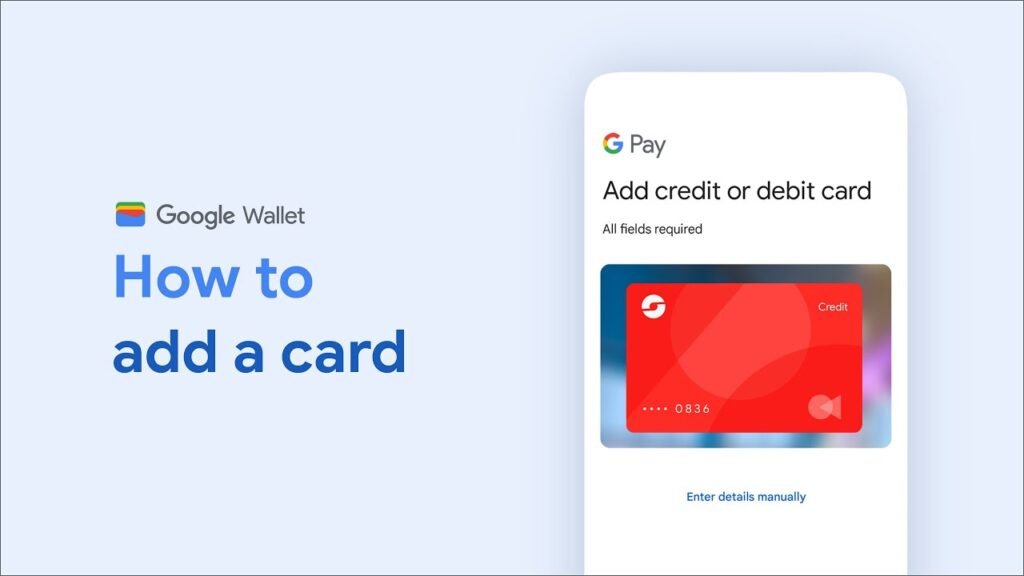
Open Google Wallet, then tap Add to Wallet > Payment card > New credit or debit card.
You can scan the card using your phone’s camera or enter the details manually. Google will then show the card issuer’s terms, and your bank may ask you to complete an additional verification step before the card is activated.
Once the card has been approved, make sure NFC is turned on and Google Wallet is set as your phone’s default contactless payment app.
You can check your setup from Google Wallet by tapping your profile picture and opening Payment setup. The app will flag anything that still needs to be configured.
Some banks may also let you add a supported card from their own banking app instead of starting in Google Wallet.
How to pay with Google Pay in stores
You normally do not have to open Google Wallet before every payment.
Unlock your Android phone, hold it close to the contactless reader, and wait for the confirmation on screen. Google Wallet automatically uses the card you selected as your default payment method.
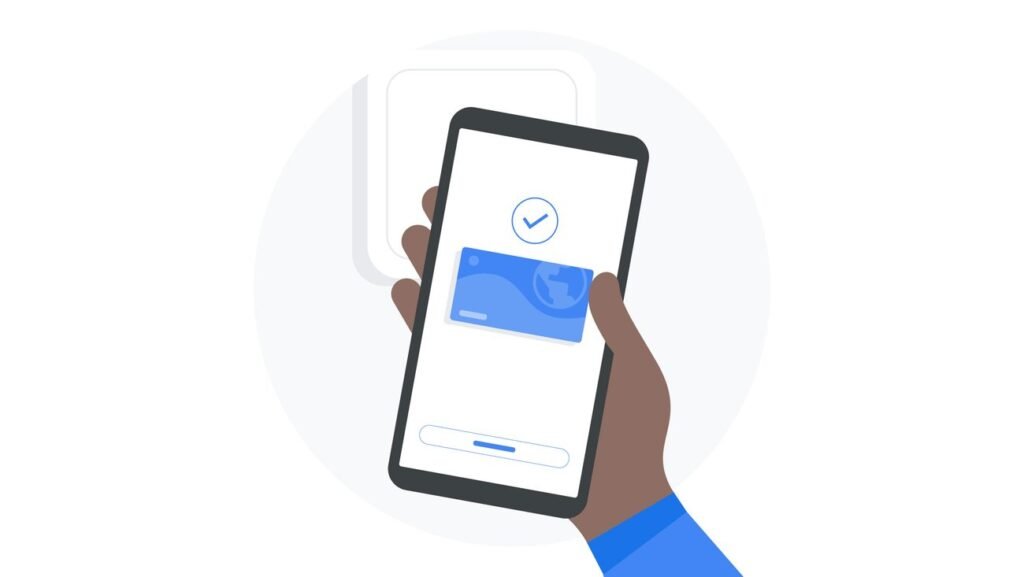
If you want to use a different card, open Google Wallet and select it before tapping.
Look for the contactless symbol or Google Pay logo at the terminal. A merchant also needs to accept the payment network of the card you are using.
Can you use Google Pay on a smartwatch?
Google Wallet also supports contactless payments on compatible Wear OS watches.
The watch needs NFC, an up-to-date Google Wallet app and Google Play Services, and a supported payment card. The Philippines is among the markets where supported payment methods can be used through Google Wallet.
Cards have to be added to the watch separately. Adding a card to your phone does not automatically set it up for payments on your smartwatch.
Once configured, open Google Wallet on the watch and hold it near the payment terminal. You do not need to have your phone with you to pay using a card already set up on the watch.
What about GCash?
GCash has its own Google Pay integration, although the rollout is still gradual.
GCash says eligible users can go to Profile > My Linked Accounts > Google Pay > Add to Google Wallet and complete the verification process from there.
The feature currently requires a fully verified GCash account, an account holder aged 18 or older, and an updated GCash app. GCash says it is not available to GCash Jr. or GCash Overseas users.
If Google Pay does not appear under My Linked Accounts, GCash says the feature may simply not have reached your account yet.
Google’s own supported-payment table separately lists GCash under Mastercard debit cards. Because Google and GCash describe the integration differently, the safest approach is to follow the Google Pay option shown inside your own GCash app rather than assume a particular GCash product is eligible.
Can you use Google Pay online?
Google Pay is not limited to tapping your phone at a physical store.
Participating apps and websites can offer Google Pay as a checkout option. If your supported card is already set up, you can choose it without manually typing the card number each time.
NFC is only relevant to contactless payments at a physical terminal. It is not what handles an online Google Pay checkout.
Is Google Pay secure?
For eligible cards, Google Wallet creates a virtual card for in-store payments. The virtual card uses a different number in place of your actual card number, which helps keep the underlying card details away from the merchant during the transaction.
Google Wallet also requires a screen lock for in-store card payments. Depending on the phone, you can verify yourself using a PIN, pattern, password, fingerprint, or supported biometric authentication.
Your physical card continues to work after you add it to Google Wallet. Google Pay is simply another way to use the same underlying card account.
What if your bank or card is not supported?
If your bank is not on Google’s Philippine list, or your particular card cannot be added, the issuer needs to enable support first.
Google specifically notes that banks control which of their cards can use Google Wallet and can restrict individual products from mobile payments.
The supported list has expanded since Google Pay arrived locally, so it is worth checking Google Wallet again if a card that previously did not work becomes eligible later.